Mobile Automation Testing with Cucumber, Appium, and Allure Reporting for iOS
Introduction
Cucumber is a open-source software tool used for behavior-driven development (BDD). It defines application behavior using a plain language called “Gherkin” that customers can easily understand. It uses keywords such as “Given,” “When,” and “Then”.
Requirement for Cucumber Testing
The requirements are slightly different for Cucumber testing on iOS. Here is everything you will need:
WebDriverAgent
Xcode
Appium Server
iOS Simulator
Appium Inspector
iOS App
WebDriverAgent
WebDriverAgent is an open-source server for automation testing of iOS apps using Selenium and Appium. It offers a reliable solution for iOS application testing across various devices and operating system versions.
WebDriverAgent acts as a bridge between Selenium/Appium and iOS apps, which allows testers to interact with native iOS elements through code. This tool supports the execution of automated tests on both iOS devices and simulators.
“WebDriverAgent” installation.
Xcode
For iOS app development, Xcode is the integrated development environment (IDE). So, install Xcode from the Mac App Store. It includes the necessary tools and simulators for iOS app testing.
Appium Server
We need the Appium server for iOS testing. You can install it using npm (Node Package Manager) by running the command: npm install -g appium.
iOS Simulator
Xcode comes with in-built iOS simulators that used for testing. After installing Xcode, launch the iOS simulator from Xcode’s “Window” > “Devices and Simulators” menu.
Appium Inspector for iOS
Appium provides an Inspector tool for inspecting iOS elements during testing. You can launch it by starting the Appium server and clicking on the “Start Inspector Session” button.
iOS App
You'll need the .app file of the iOS app you want to test. Make sure you have access to the app's binary file for testing purposes.
Cucumber File Structure:
1. Featue file
2. BaseClass
3. Pages
4. Step-definitions
5. Locators
6. Runner Class
Project Setup in IDE
To write our test cases in Java, we need any Java-based IDE (integrated development environment) like Eclipse or IntelliJ. We can write and organize our code here.
We’ll use Eclipse to write our test cases. Open Eclipse. You’ll see a bunch of options. Click on “File”, then choose “New” and then “Other.”.
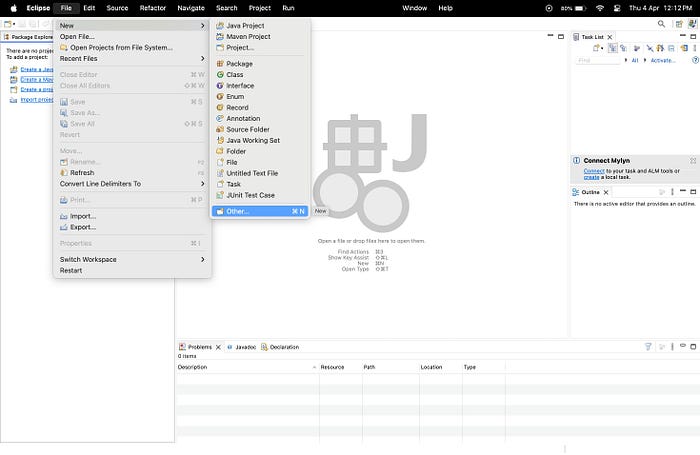
Next, type “Maven” in the search box and click enter. After that, select “Maven Project” and click on the “Next” button.
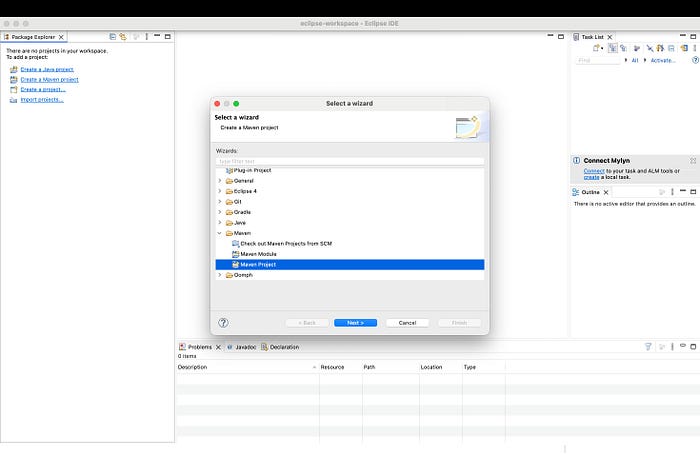
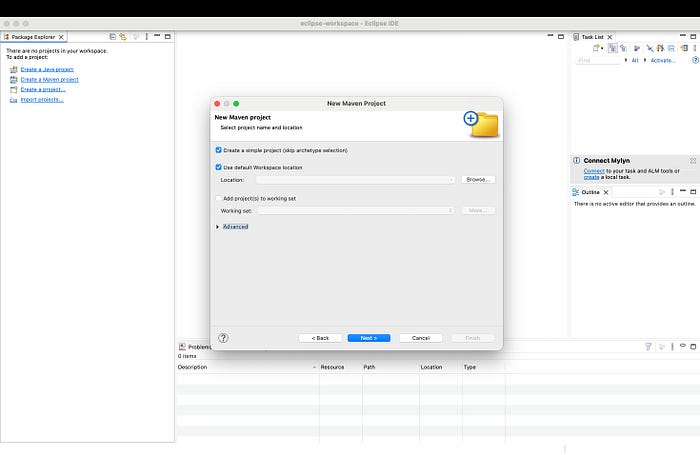
Ensure that the first checkbox labeled “Create a simple project (skip archetype selection)” is checked. This option simplifies the project creation process by skipping the selection of project archetypes. After ensuring the checkbox is selected, click on the “Next” button to proceed to the next step in creating your Maven project.
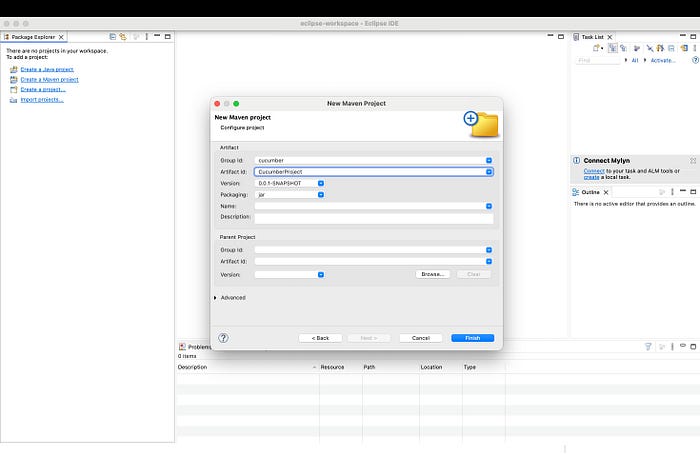
Now, give the Group ID and Artefact ID fields; it’s common practice to use the same value. This helps maintain consistency and clarity within your project structure.
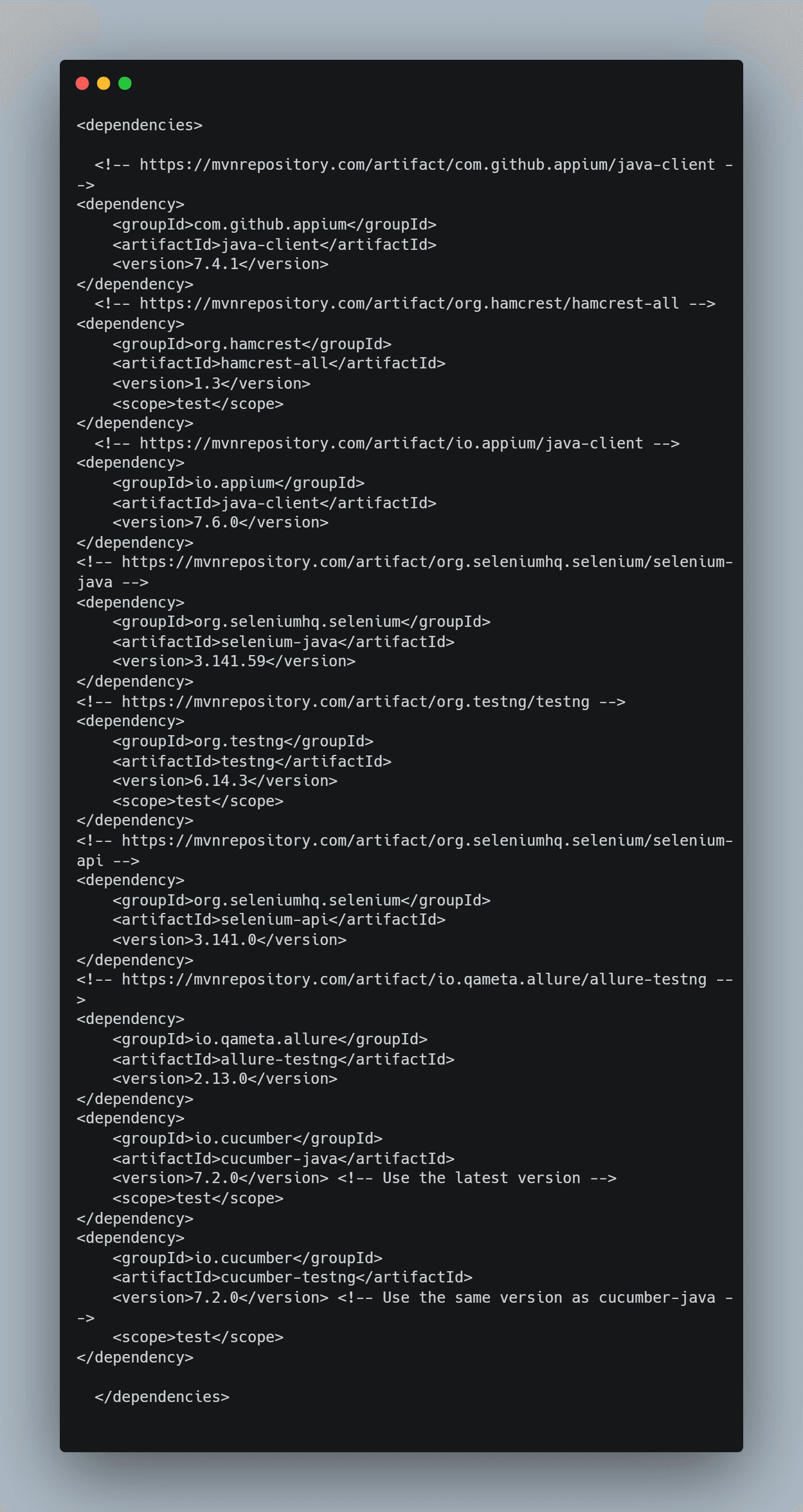
Once your project is opened in Eclipse, locate the pom.xml file in the project directory. This file contains the configuration for your Maven project, including dependencies. To add the dependencies to your project.
Feature File
To write cucumber tests, we use files with a .feature extension. In this files, “Gherkin” language is used.
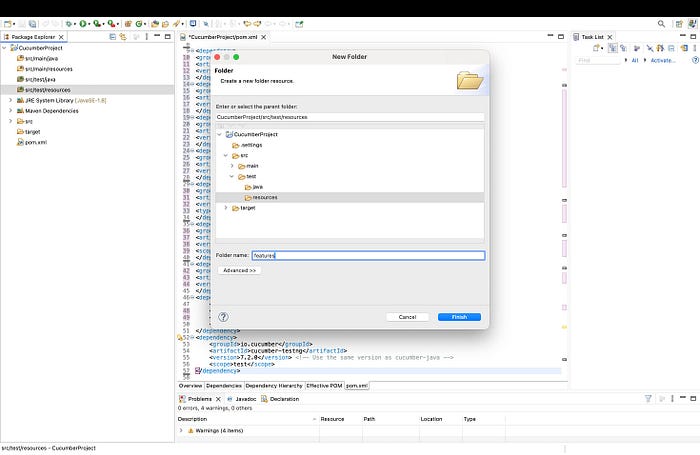
Inside the “src/main/resources” directory create a new folder called “features”. This folder will contains all Cucumber feature files. In this post, we’ll test the built-in calculator app on a connected iOS simulator.
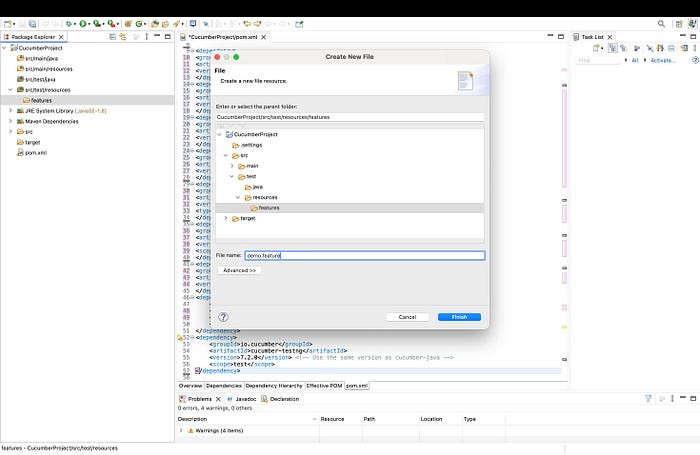
Inside the “features” folder, create a new file named “demo.feature.” This file will contain the scenarios for testing the built-in calculator app on an iOS simulator.
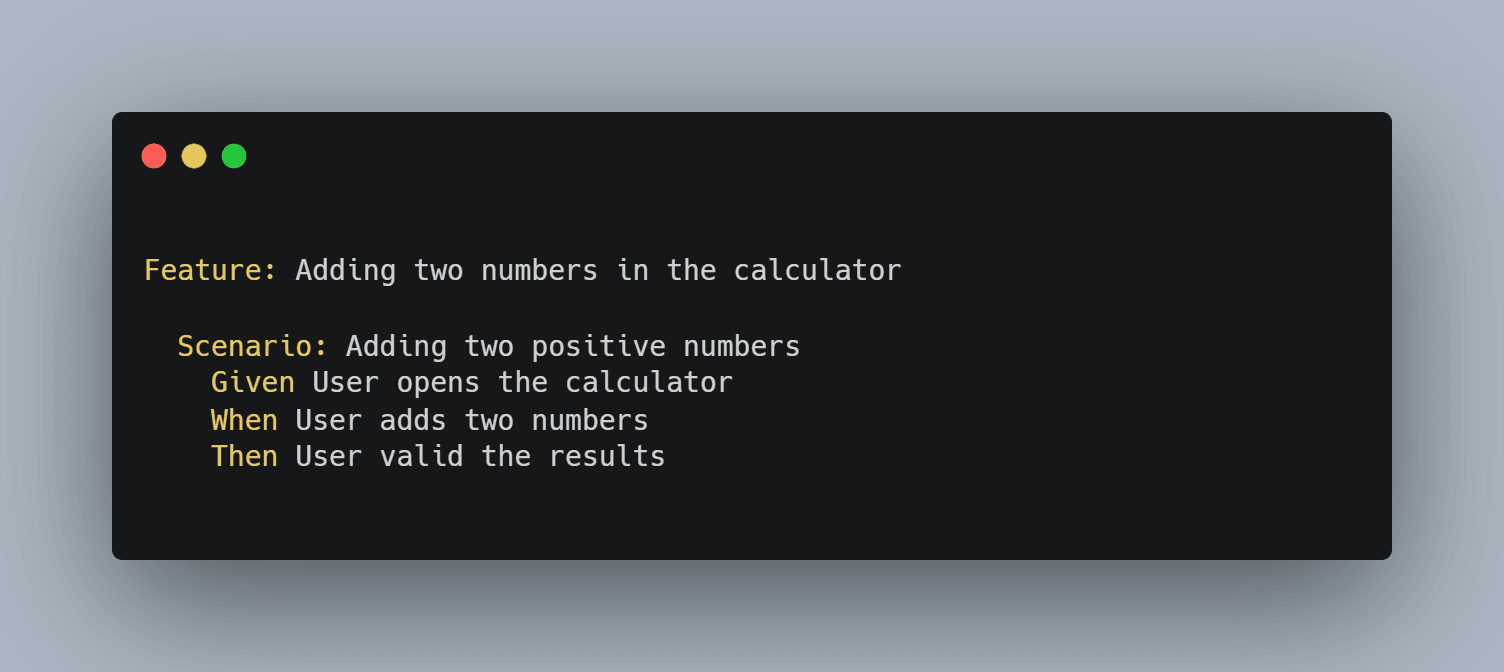
Each scenario in the feature file represents a specific test case. For example:
BaseClass
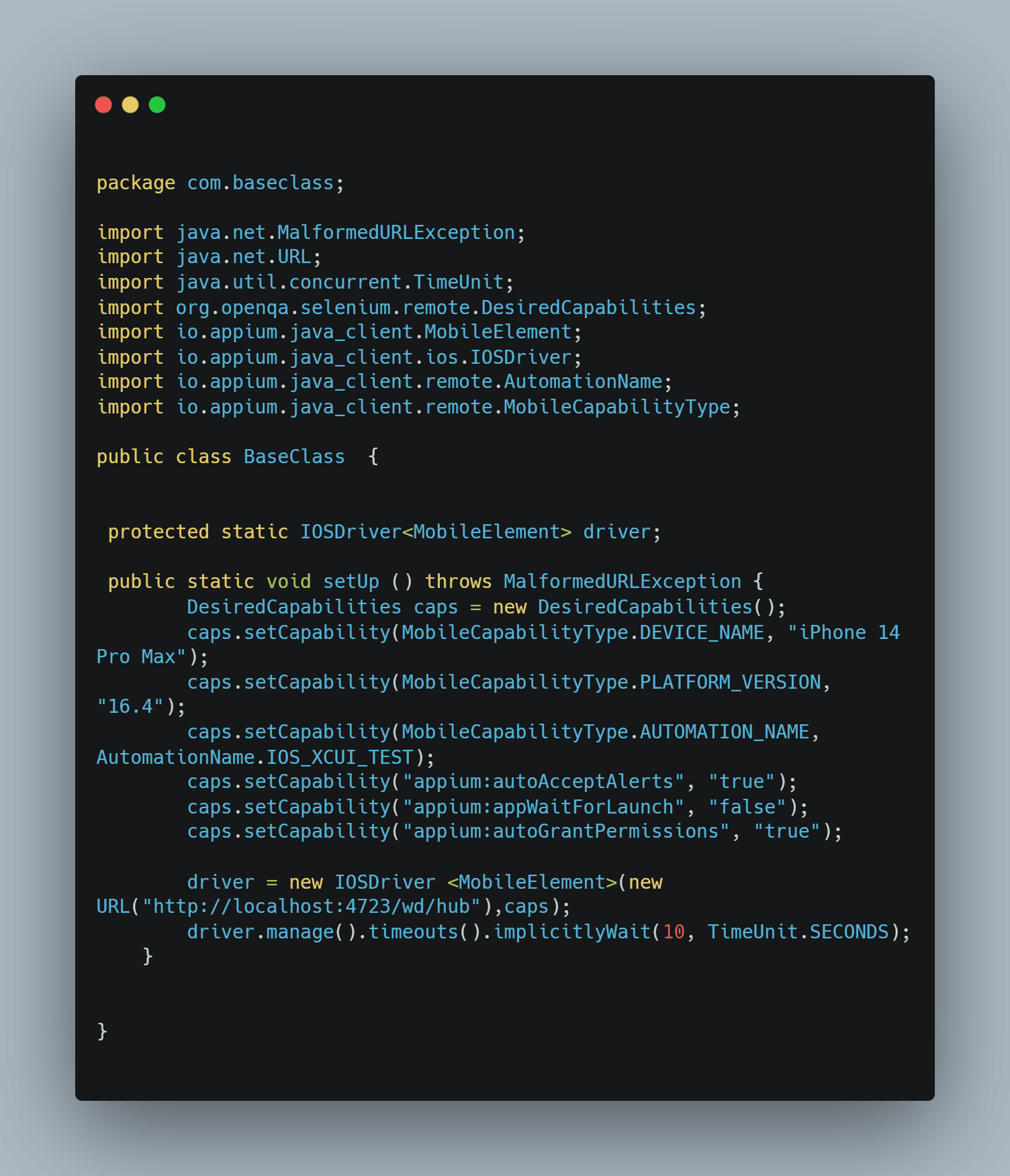
The base class contains settings for desired capabilities and teardown code shared across multiple test cases, ensuring consistency and maintainability.
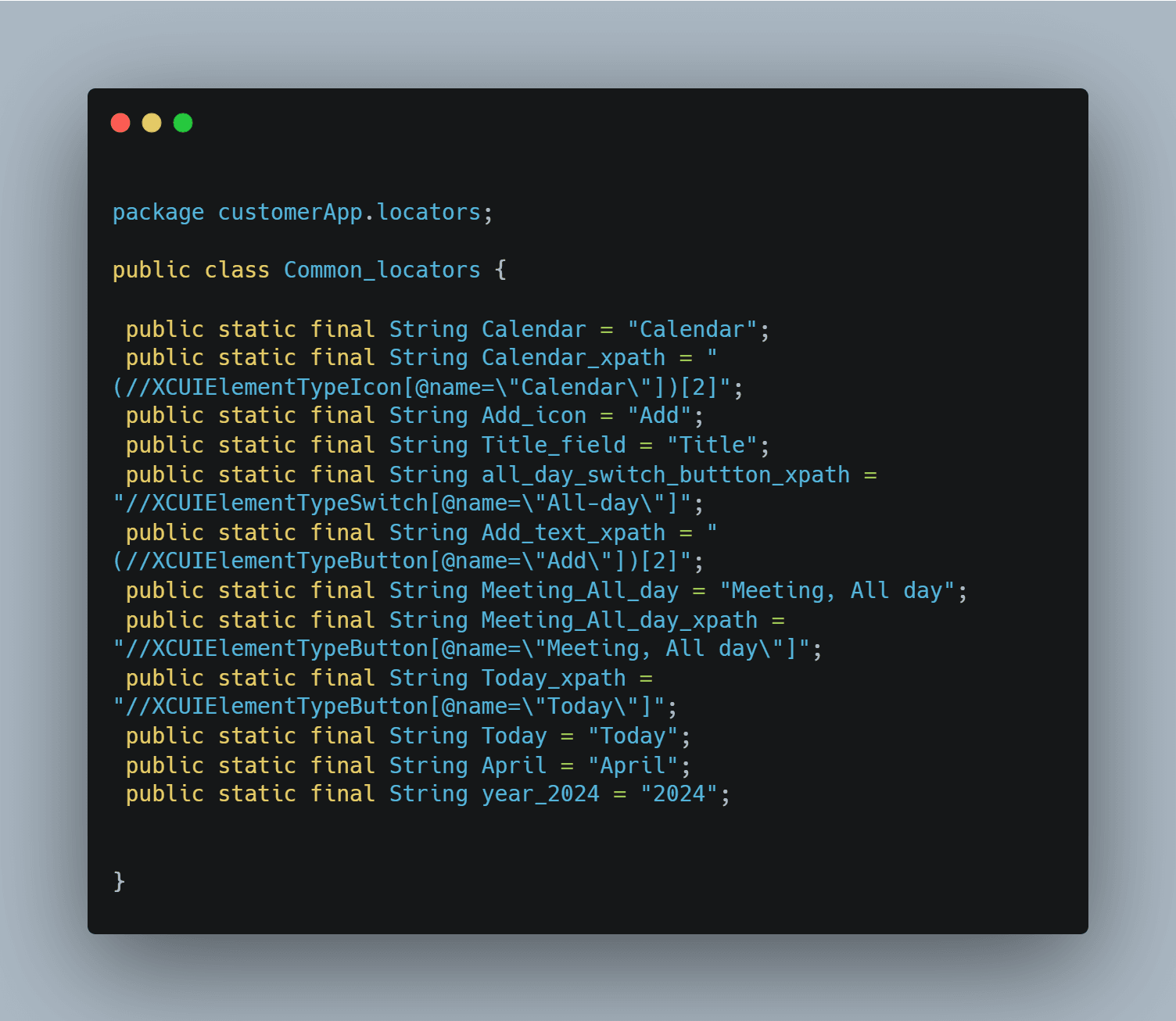
Locators
The locator file defines and stores the locators of elements on mobile application.
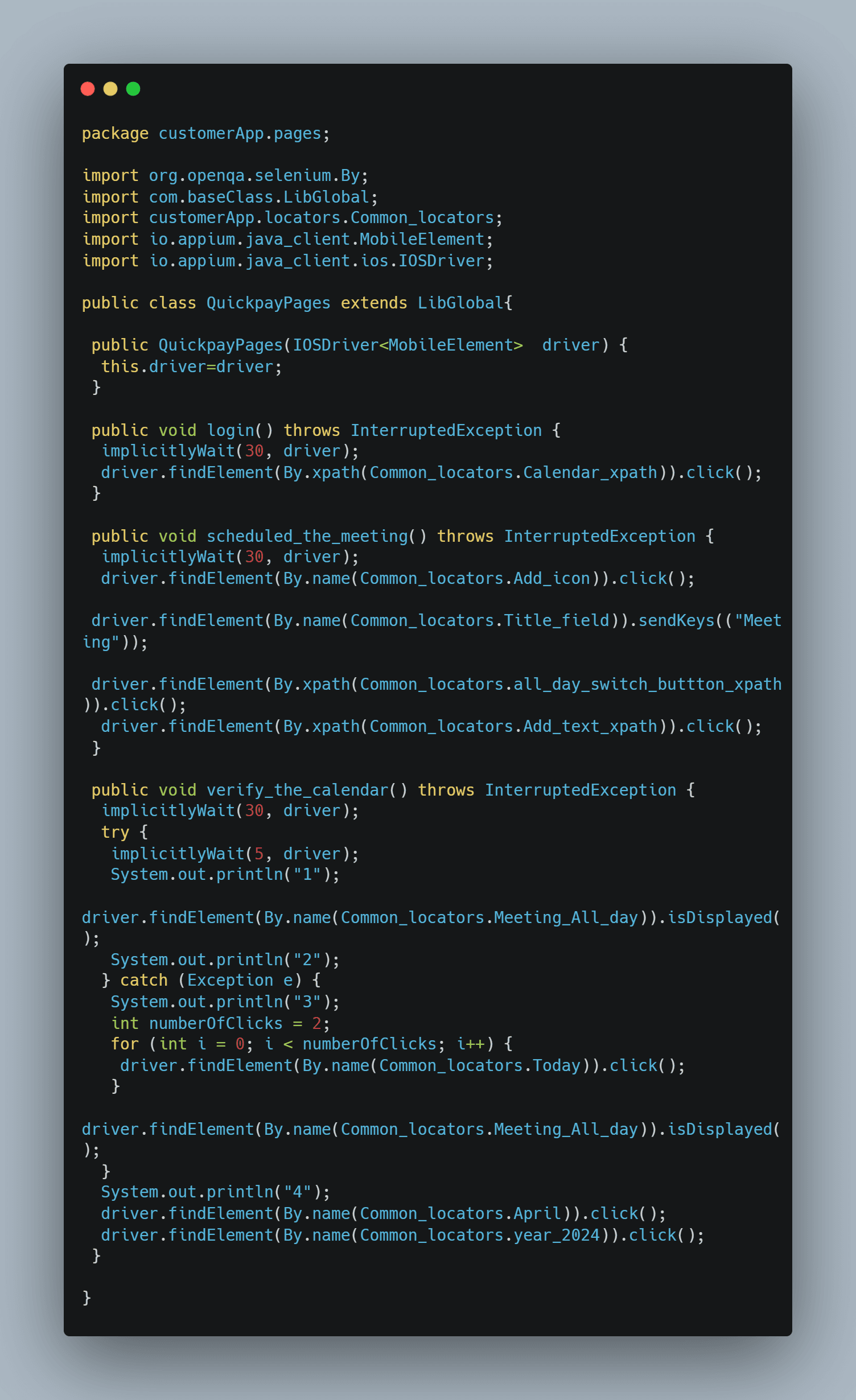
Pages
Page files represent specific pages or components within the application and include methods for interacting with various UI elements.
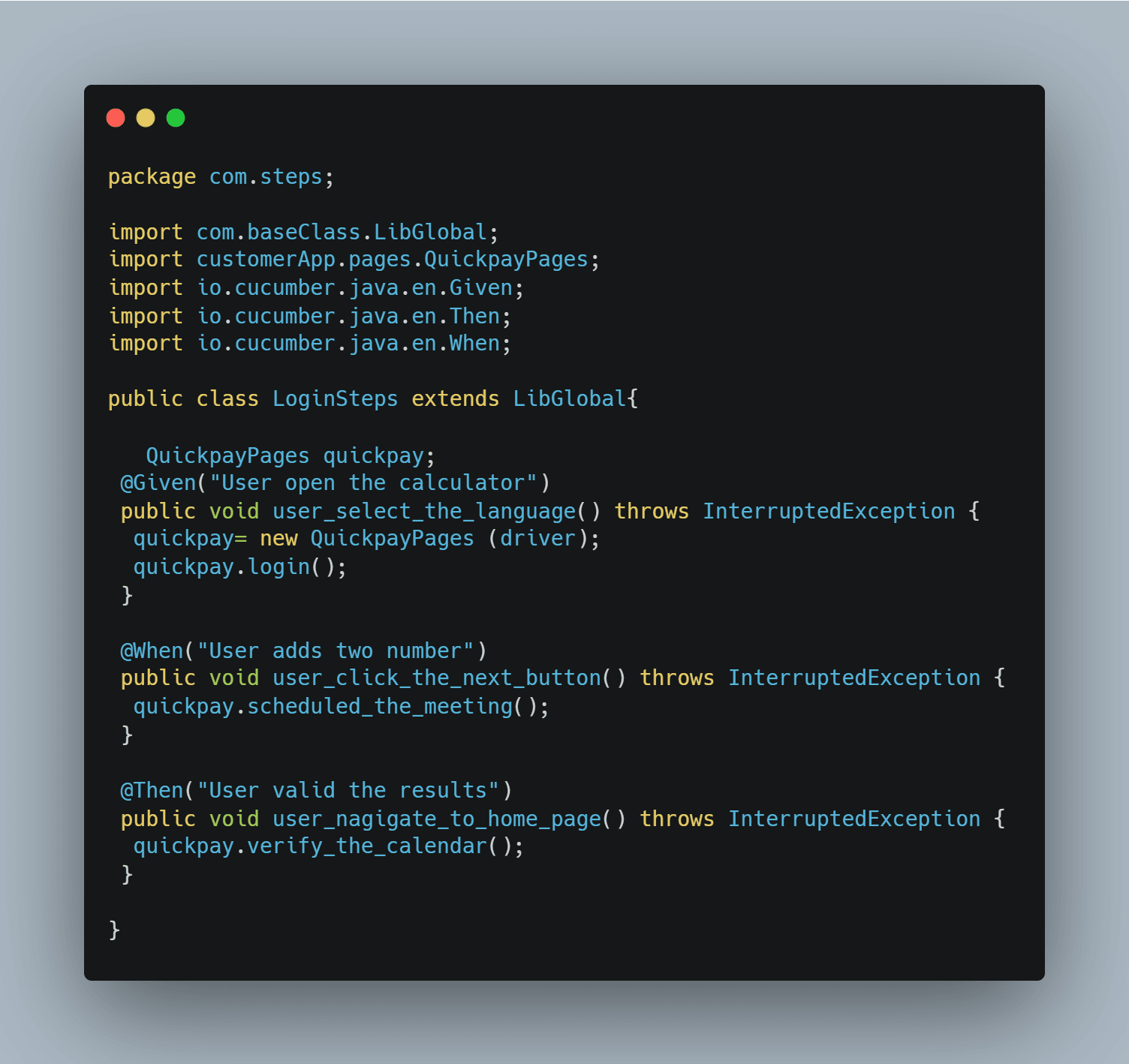
Step Definitions
Step definitions translate the plain-language steps in feature files into executable code, driving the actual test execution. contains step definitions that translate plain-language steps from feature files into executable code, facilitating the actual test execution.
Runner Class
The RunnerClass file is responsible for orchestrating the execution of cucumber tests. It specifies the location of feature files and step definitions.
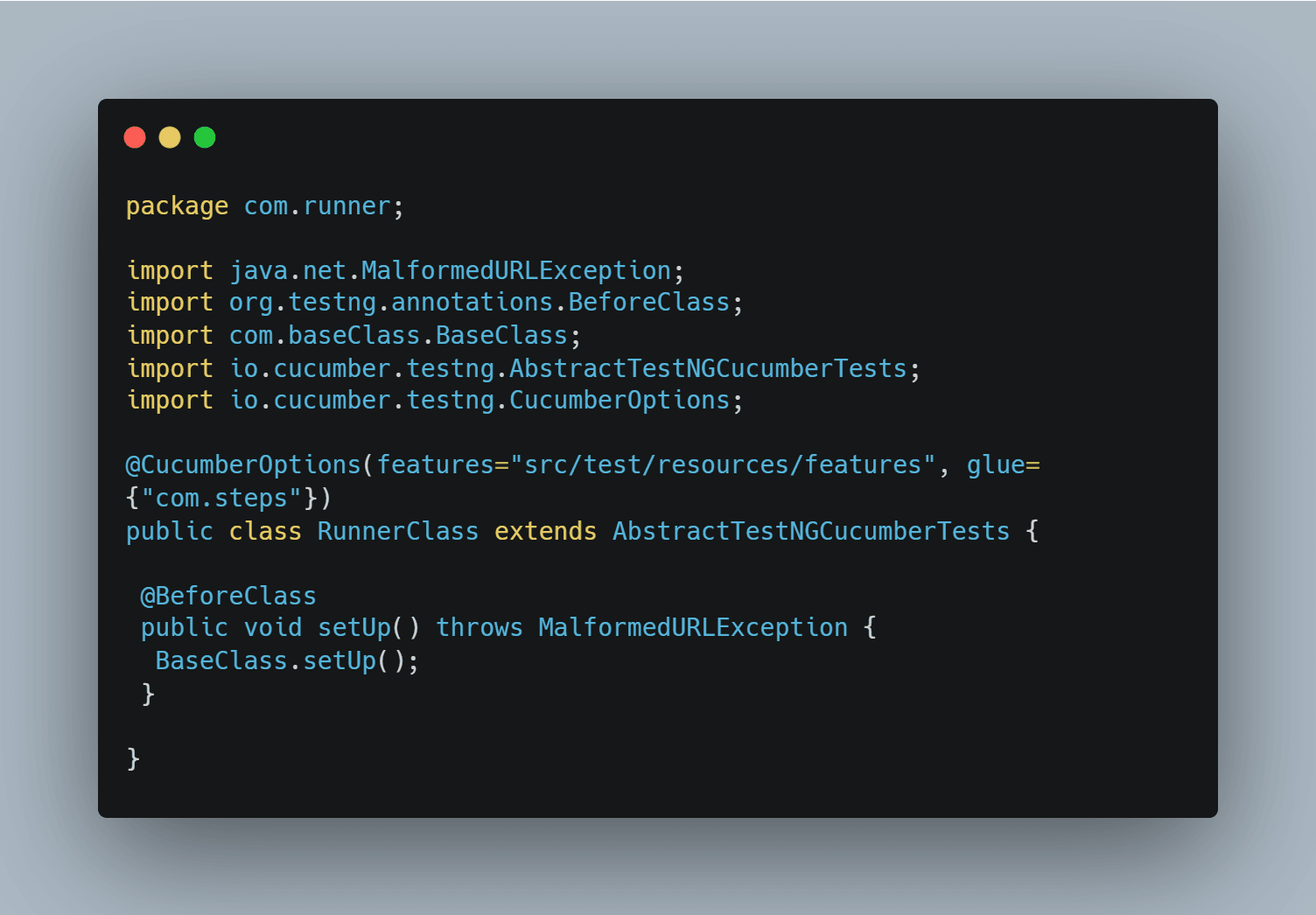
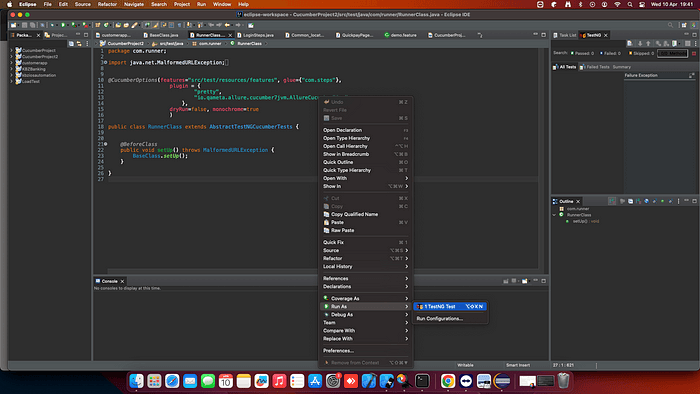
Now, back in the project, right-click on the com.runner.java file. Then, click on Run As > TestNG test.
After executing the Maven test for the “LoginSteps.java” file from the terminal, you'll see the test results displayed in the console. If all test cases succeed, you'll typically see a summary indicating that the tests passed.
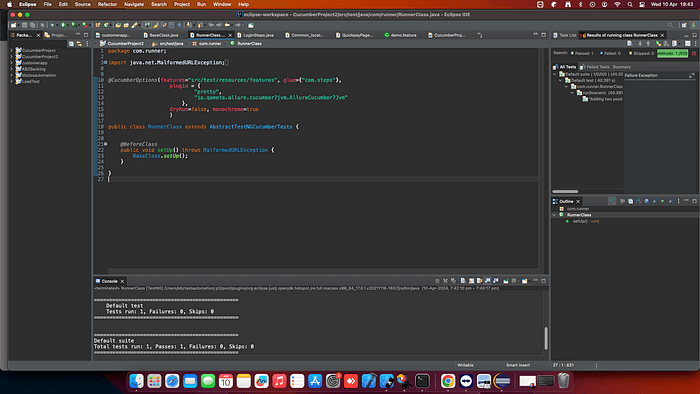
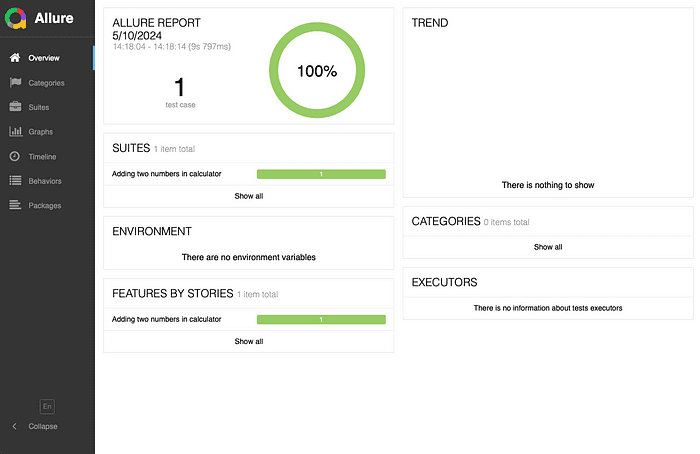
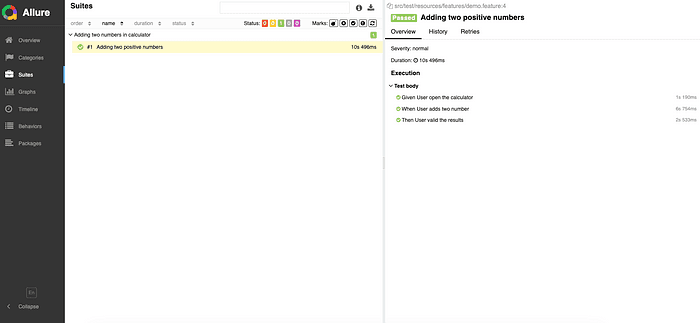
After executing your Cucumber Runner class, proceed to open the command prompt or terminal on your machine. Navigate to the directory where your Allure results are stored using the cd command. Once you're in the correct directory, input the following command to generate the Allure report:
allure serve allure-results
Overview of Allure Reporting
Allure is an open-source framework to generate detailed test reports for various testing frameworks such as Pytest, JUnit, TestNG, Cucumber, and more.
Allure Annotations
Allure offers several annotations that you can leverage to provide additional context and details in your test reports. Some of the key annotations include:
@Feature: Describes a high-level feature being tested.@Story: Describes a specific user story or scenario being tested.@Step: Marks a step within a test scenario, providing detailed information about each step.@Attachment: Allows attaching additional files or data (such as screenshots or log files) to the test report.@Description: Gives a detailed information of a test method or scenario.@Severity: Severity level of a test case is specified(e.g., critical, high, medium, low).@Issue: Associated issue or bug-tracking system will connect to a test case.@Link: Adds hyperlinks to external resources related to the test case.@Owner: Indicates the owner or responsible person for a test case.@Tag: Adds tags to categorize or filter test cases.@Epic: Defines an epic or overarching theme associated with a group of test cases.
Allure report