


Multi-Page PDF with Distinct Layout Using Puppeteer
These days, practically every company seeks to offer data in PDF format, whether it your bank statement or order details. All people do is share information through PDFs, which you can view on your devices and print to keep on file. Given the widespread use of PDFs, all developers ought to experiment with PDF producing libraries, including pdfmake, PDFKit, Puppeteer, and so on.
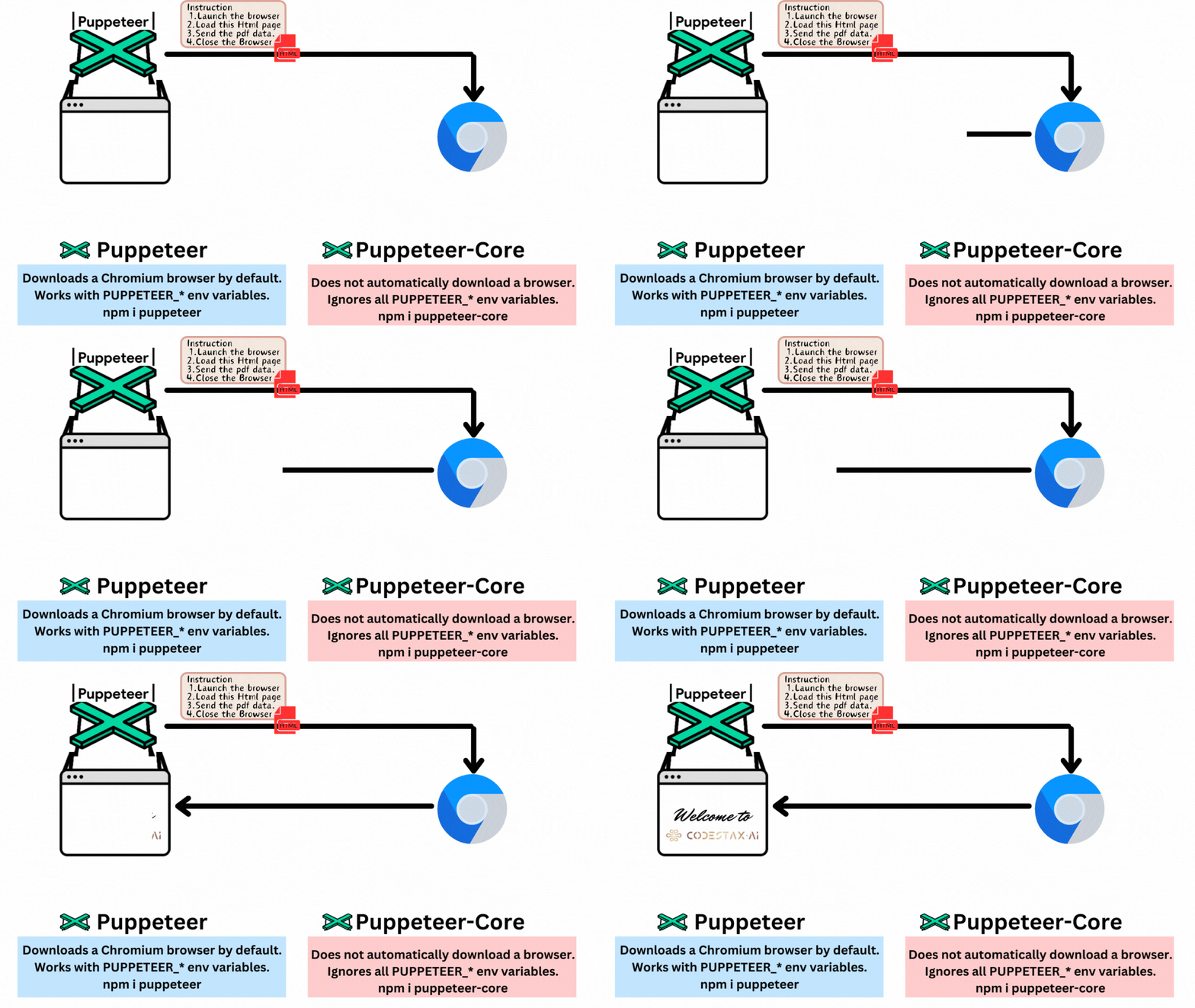
In this tutorial, I will generate the PDF locally using Puppeteer-Core subsequently, we will talk about an entire architecture to automate PDF generation with AWS services. As you may have observed by now, I’ve talked about Puppeteer-Core rather than Puppeteer, so let’s start by examining their distinctions.
What is Puppeteer and how its different from Puppeteer-Core ?
Puppeteer is a Node.js library that provides a high-level API to control Chrome/Chromium over the DevTools Protocol. Puppeteer runs in headless mode by default but can be configured to run in full (“headful”) Chrome/Chromium. You’re on the correct road if, after reading this definition, you’re thinking it’s a browser control library akin to web automation. It will produce the PDF exactly how you would manually with an HTML page in your browser.
Initial Setup and Requirement
Linux OS (Ubuntu)
Node.Js (18.17.0)
Puppeteer-Core (21.5)
@sparticuz/chromium (119.0.2)
After successfully installing these requirements, your package.json will have these entries.
"dependencies": {
"@sparticuz/chromium": "^119.0.2","puppeteer-core": "21.5"
}
We can now get on with the coding as our initial setup is over.
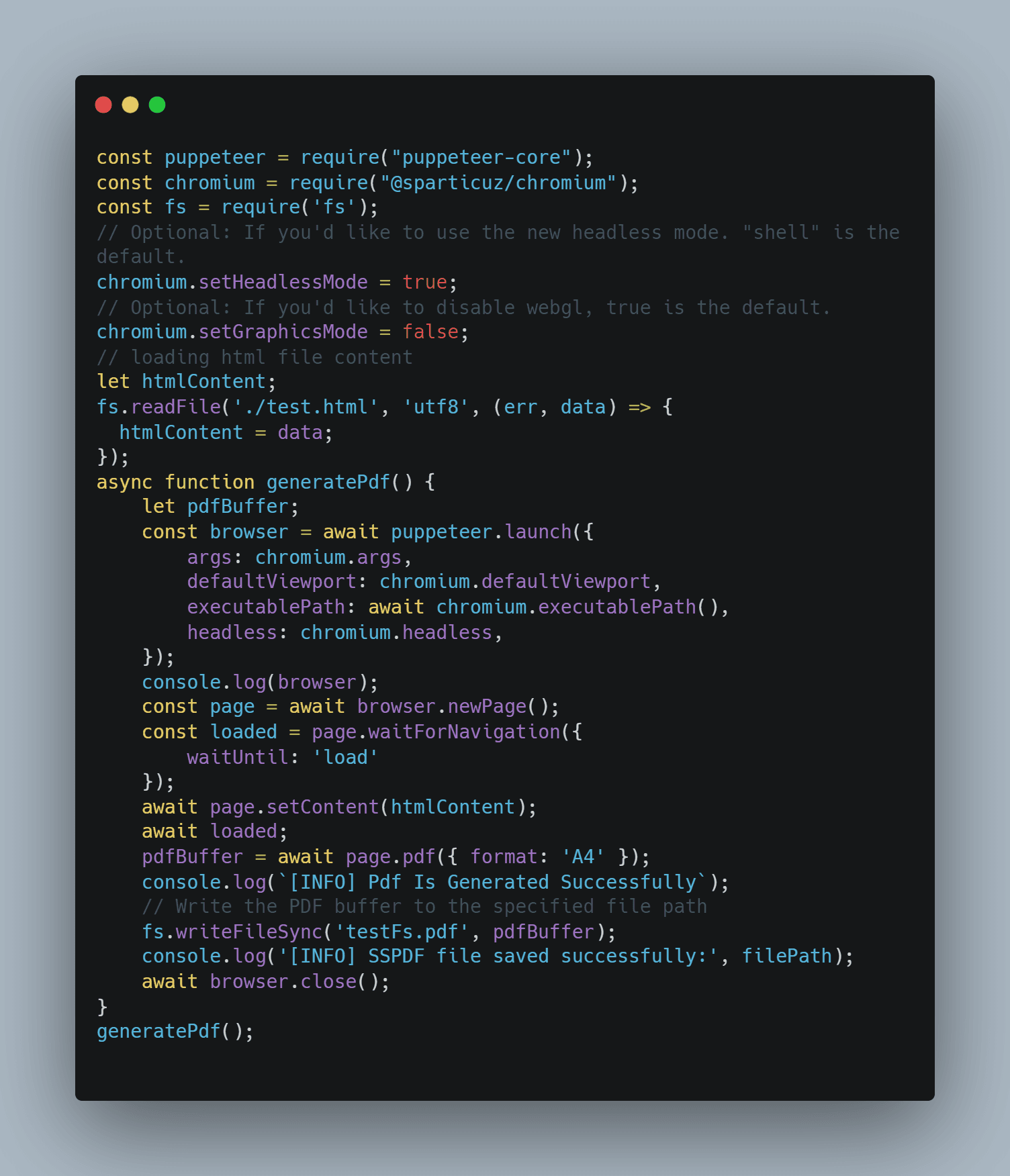
Though you can have your own HTML file with content, I’m using test.html here. I’m also handling files with the fs module.
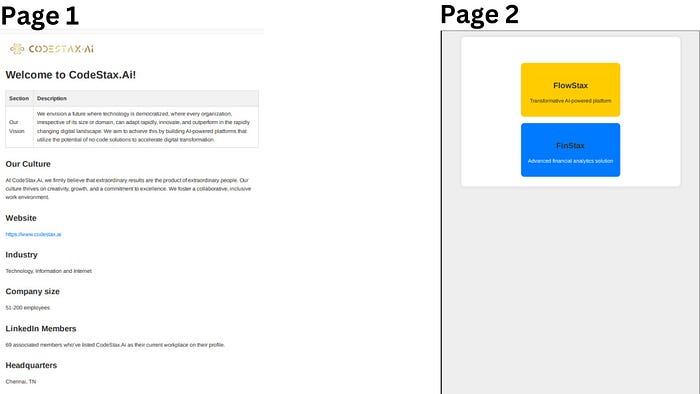
This is the PDF I produced, and each page has a different layout. You can write your page content inside the `div` tag and utilize the CSS `page-break` property to ensure the page break.
<div style="page-break-after: always;"><!-- Your page Content --></div>
Now that we have finished the static content portion of the PDF generating process, genuine PDFs will require dynamic content that varies periodically for various users.
Regular expressions, or RegExp, are one potential way to solve this issue in our HTML template. Then, we can utilize RegExp and the `replace` method in our JavaScript file to swap out certain strings for dynamic values.
This code is a component of the HTML code, where the RegExp is placeholderd with `${Receipt Number}.
<td>
<strong>Receipt Number : </strong><span>${Receipt Number}</span>
</td>
The JavaScript `replace` method will be used to replace this RegExp with dynamic data.
let pdfData = {'Receipt Number' : "10/04/2024"}let htmlContent = htmlString.replace(/\${([^}]+)}/g, (match, key) => pdfData[key.trim()]);
After performing this replace operation, `${Receipt Number}` will be replaced with `10/04/2024` in the HTML code, which will later be passed to Puppeteer for PDF generation. Now, let’s discuss the automation of PDF generation.
How to Automate PDF Generation Using AWS Services
Automation of PDF generation requires some AWS services such as:
We associate this Lambda with every event that takes place in our application, such as database insertion. We can now be guaranteed that this Lambda will be executed on a certain event after adding it as a trigger. The S3 bucket is the following section. The HTML template, which will be sent to the browser to create the PDF, will be stored in an S3 bucket.
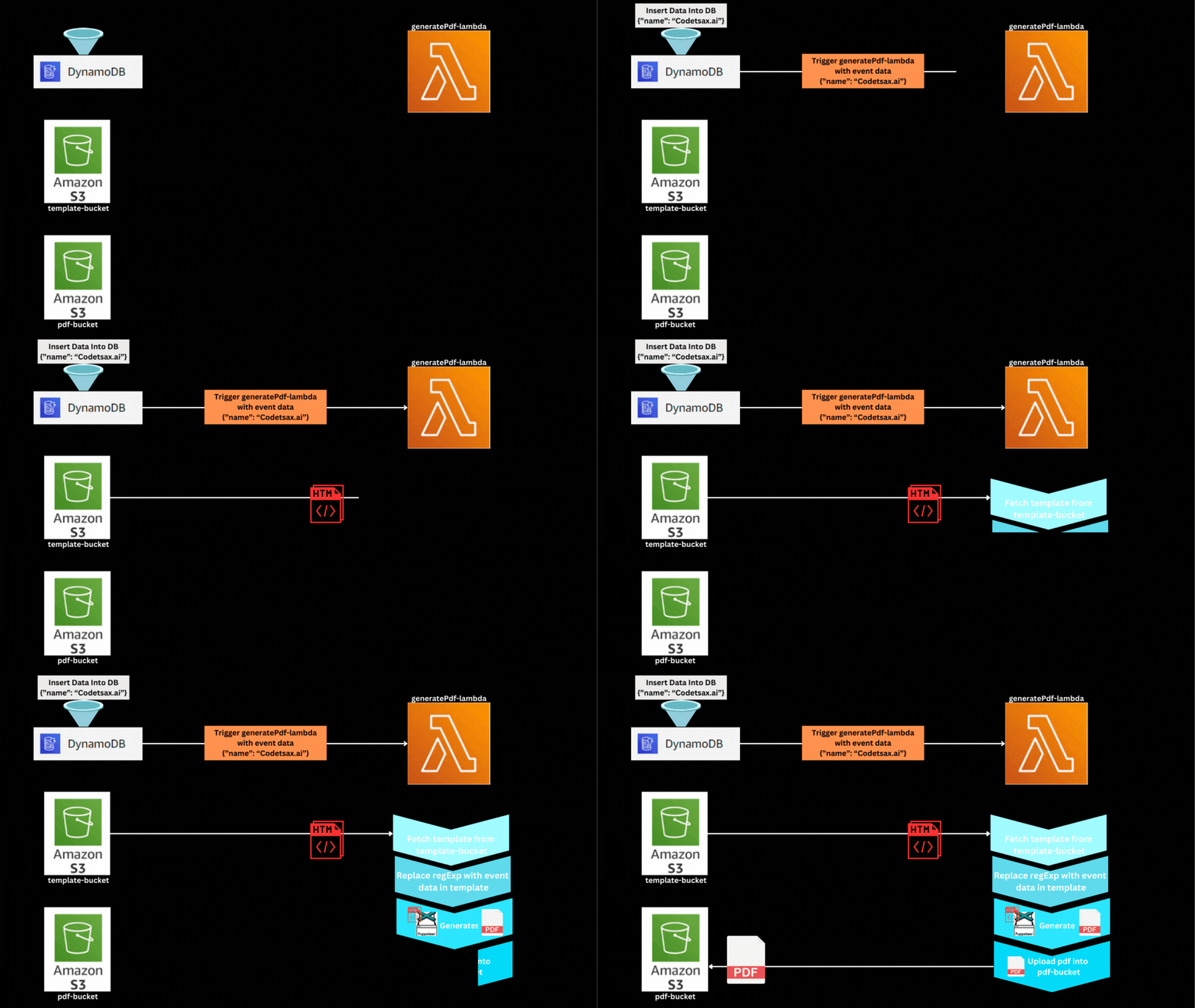
The processes involved in creating a PDF can be seen by looking at the Pdf Automation Design materials.
For presentation purposes, I am using AWS Lambda, which gets triggered on DynamoDB operations, and S3 buckets to fetch the template and store the newly created PDF. Let’s look into how we set up this whole architecture in our project:
Make HTML Template and Save it to Template-bucket on S3.
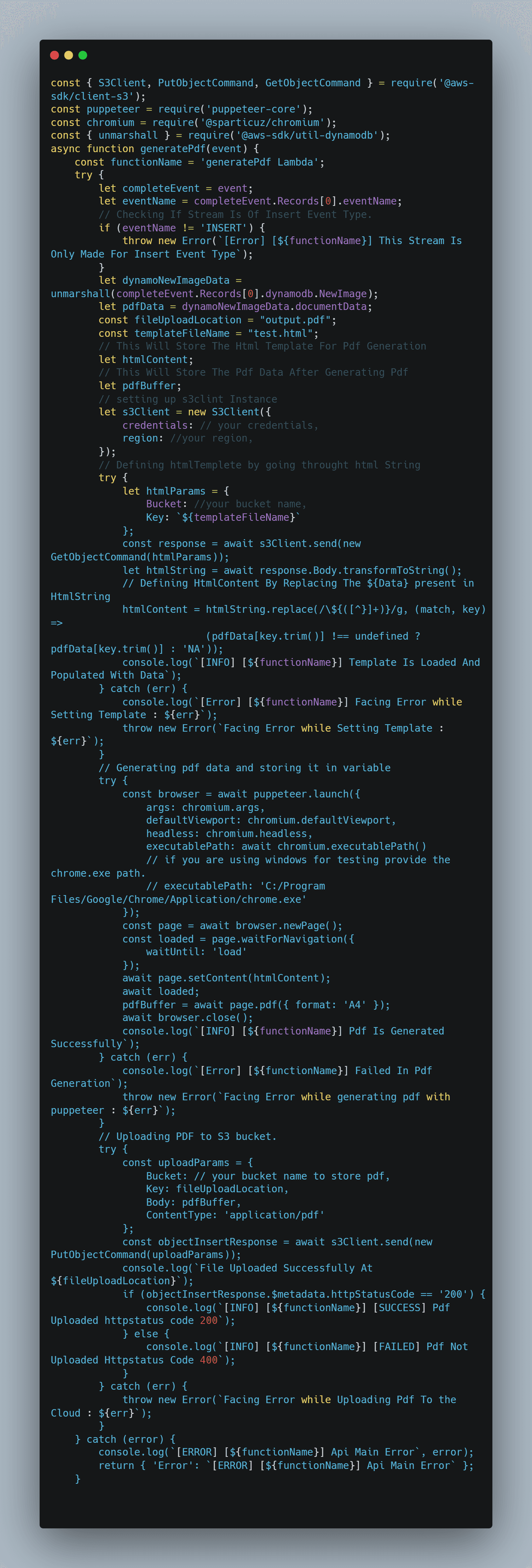
Make a Lambda Method that mostly does four things.
a. Retrieve the template out from the template-bucket S3 bucket.
b. Apply the replace function to replace event data obtained in the Lambda method’s parameter for the RegExp string found in our template.
c. Create the PDF with altered values by using Puppeteer with the template.
d. Put the produced PDF into an other S3 bucket (pdf-bucket).On DynamoDB Operations, Trigger Lambda Add a Lambda function as a trigger for every operation on our DynamoDB table.
We have come to the end of this article. I hope you learned something new, just like I did when I had a requirement to generate a PDF with multiple pages and different layouts. Discovering Puppeteer fulfilled my requirement, and I’m glad to share this knowledge with you. Thank you for your time. If you have any suggestions, please feel free to provide them in the comments section.